Naver Map English: Change Language, Search, Directions, Save
Switch Naver Map to English (MY > gear icon > 언어 > English), then search in Korean when English fails, follow transit and walking routes, and save and share places.
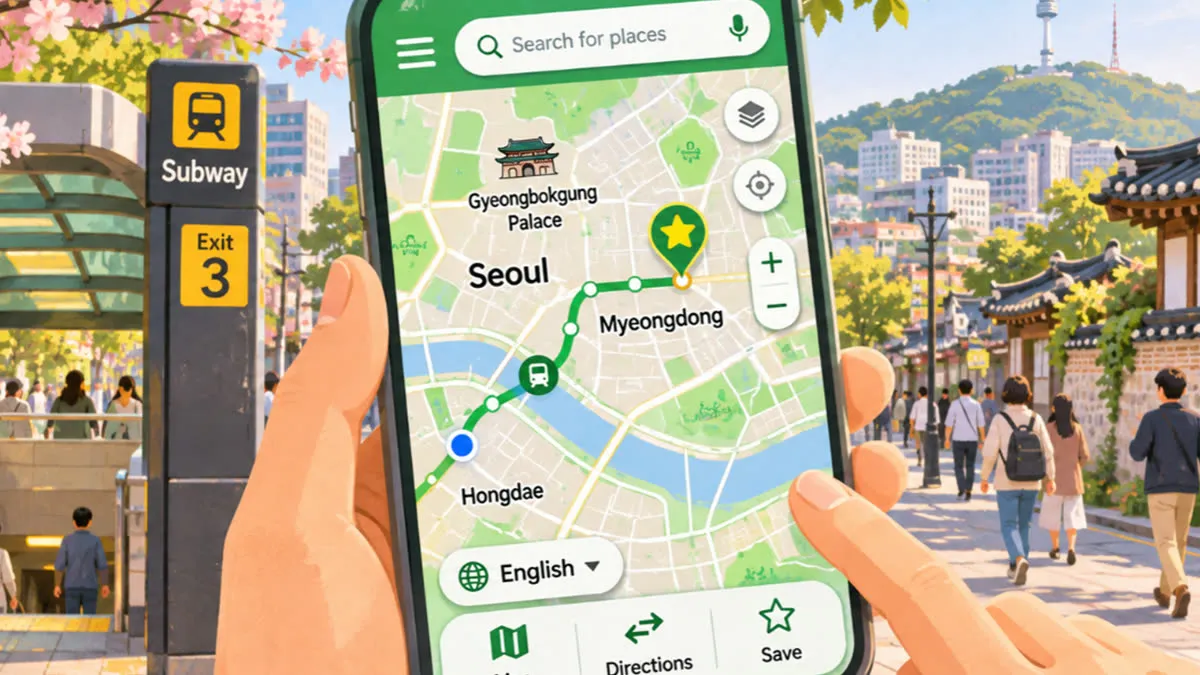
To switch Naver Map to English, open the app and tap MY (the profile icon). Tap the gear icon at the top right, then 언어 (Language), and choose English. You can pick Korean, English, Simplified Chinese or Japanese. The app is free on the App Store as of November 24, 2026. Searching and getting directions work without an account, but you have to sign in with a Naver ID to save places.
If you have not yet decided between Naver Map, Kakao Map and Google Maps, see Best Map App for Korea: Naver Map, Kakao Map, Kakao T and Papago.
How to change Naver Map to English
Naver Map uses one of two settings for its language: your phone's system language, or the language you choose inside the app. If your phone is set to a language other than these four and the app opens in Korean, change the setting inside the app.
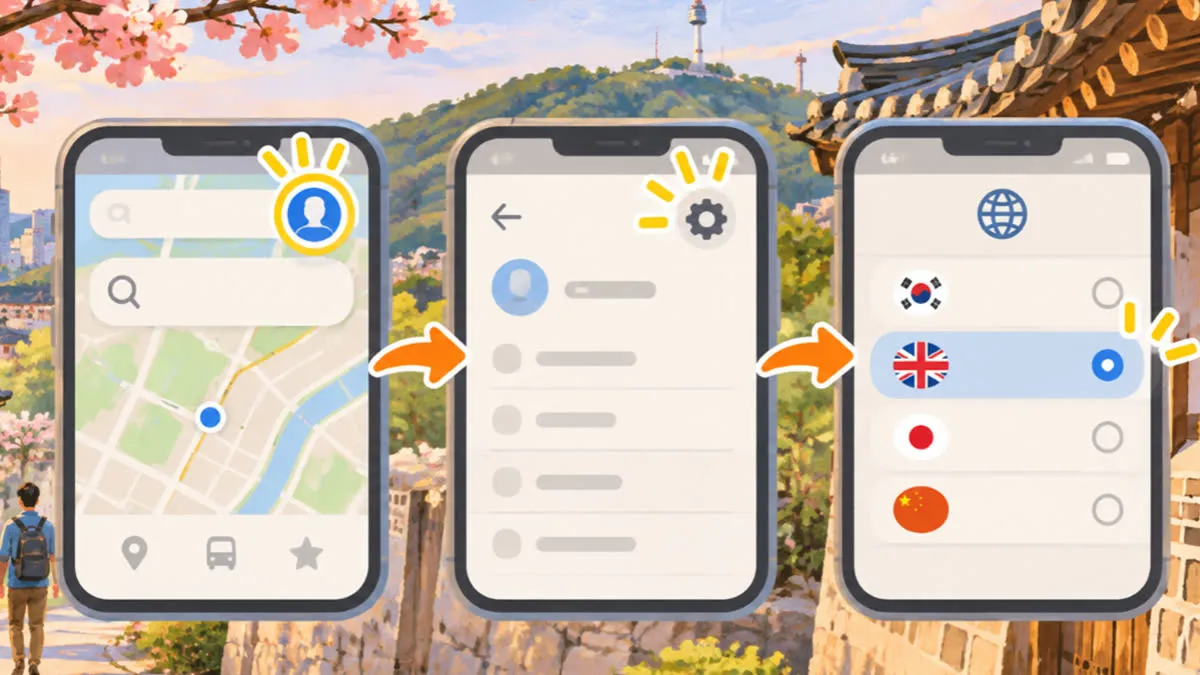
- Open NAVER Map (네이버 지도). On the App Store it is called "NAVER Maps, Navigation".
- Tap MY (the profile icon).
- Tap the gear icon (설정, Settings) at the top right.
- Tap 언어 (Language).
- Choose English (영어). The other options are 한국어 (Korean), 중국어 간체 (Simplified Chinese) and 일본어 (Japanese).
Naver's help page gives this path for Android. If the iPhone menu looks different, look under Settings for the 언어 item.
What English mode translates and what stays in Korean
The App Store description says the app offers maps in Korean, English, Japanese and Chinese, plus English navigation. Business names, addresses, categories and the details on place pages were already translated. In October 2024 Naver started using its Papago translator for Korean text reviews, translating them into English, Chinese and Japanese. The same update translated opening hours, the place-page tabs (home, reviews, photos, information) and services such as takeout, reservations, pet-friendly and group seating. Review filters such as "solo dining" and "good atmosphere" were translated for restaurants only at first. Text that owners write, such as menus, and text inside photos is not part of this list, so expect some of it to stay in Korean.
Searching in English vs Korean on Naver Map
Search is where English mode works worst. In an April 18, 2025 Korea Times report, foreign users said searches such as "Myeong-dong" and "night markets in Dongdaemun" failed. They also said English addresses they pasted in found nothing. Naver told the paper that English data was still missing in many areas, including building names, place names and some public transport information.
If a search fails, try these in order:
- The romanized name of a big landmark or station, such as "Gyeongbokgung Palace".
- The Korean name, copied and pasted. You can copy it from your hotel booking page, the business's social media or a web search result.
- The Korean road-name address (도로명주소) from your booking confirmation. Use this for guesthouses and apartments that have no place page of their own.
- A Naver Map link from your host or a friend. Tap it and the place opens in Naver Map, or in the Naver web map if the app is not installed.
If a search for a chain brings up the wrong branch, add the neighborhood to your search, for example "Olive Young Myeongdong".
How to get transit and walking directions on Naver Map
Naver Map gives directions by public transport, on foot and by car. App Store update notes for versions 6.12.1 to 6.12.3 (November 2026) say the Transit and Navigation tabs are now merged into one Go tab. Allow location access so routes can start from where you are.

Subway and bus
- Search for your destination and open directions from its place page, or open directions and type the start and end points.
- Choose the public transport option. By default, routes are sorted by best route (최적 경로순).
- Each route shows the total travel time, the number of transfers and how far you walk. Tap a route to see every leg.
Naver says users in English, Chinese and Japanese mode get real-time arrival information, subway maps, guidance on where to board and get off, and other transport options. One App Store review from May 2024 says subway station numbers do not appear in the app. Check your route against station names, not station numbers.
Walking
Naver's help page describes the steps: on the directions home screen, choose the 도보 (walking) tab, then set the start and the destination. In version 6.12.0 you can view and share saved walking courses in the Bookmark tab. New walking courses can only be made on the PC version of Naver Map. Versions 6.12.1 to 6.12.3 added a daily step count with distance and calories.
Car and taxi
The car option gives turn-by-turn navigation. If you are taking a taxi, copy the destination's Korean name or address from Naver Map and show it to the driver, or paste it into a taxi app. See the Seoul Taxi Guide: Kakao T, Card Payment, Late-Night Fares and Tips.
If no route appears or it goes to the wrong place
The search probably matched the wrong place. Open the place page and check the address, then search again with the Korean name or the Korean address. If the route starts from the wrong spot, wait for your location to update, then load the route again.
How to save places on Naver Map
Naver's help page says you can save and use information only while you are signed in with a Naver ID. An App Store update note (version 6.7.1) says foreigners can sign up for a Naver account with a passport. Your saved places belong to your Naver account, so you see them again when you sign in on another phone.
Open a place page, save the place, and find it later in the Bookmark tab (저장 in Korean). The Bookmark tab also lists places you saved in other Naver services. When Naver added this tab in December 2022, it raised the limit from 2,000 to 5,000 saved places. The tab sorts saved places into restaurants, cafes, lodging and sights. A star-shaped button on the map screen shows your saved places as icons on the map, so you can see which ones are close to you.
How to share a place or a list from Naver Map
- One place: on the place page, tap the share icon. The app makes a link you can send by KakaoTalk, text message or another app. The person who gets it can open it in Naver Map or in the Naver web map.
- A saved list: use the share button in the Bookmark tab. Naver says the people you share it with can see the saved places and any changes you make later.
- A map view on a computer: on the PC version of Naver Map, the share button copies the URL of the map you are looking at.
To show someone where you are standing, copy the Korean address from the map and paste it into your chat.
Set up Naver Map before you land
- Install the app and switch it to English while you still have Wi-Fi.
- Create and sign in to a Naver account before the trip if you want to save places. You can sign up with a passport.
- Save your accommodation using its Korean address so you can always get a route back.
- If you arrive at Incheon Airport, Naver gives out printed English, Chinese and Japanese guides to the app. You can get one at the Incheon Airport tourist information centers, the Airport Railroad information desks and the Myeong-dong welcome centers. Naver's online version is at mkt.naver.com/navermapapp.
- For a few phrases to use when the app fails, see Korean Phrases for Travelers.
Sources
Last checked: — Prices, hours and rules in Korea change often; check the official pages below before you go.
- NAVER Corp. press release: NAVER Maps translations for place reviews (Oct 2, 2024)
- NAVER Corp. press release: NAVER Map usage guide in English, Chinese and Japanese (Dec 30, 2024)
- NAVER Corp. press release: 저장 탭 and 5,000 saved places (Dec 13, 2022)
- The Korea Times: Local maps gain popularity, but leave foreigners unsatisfied (Apr 18, 2025)
- App Store: NAVER Maps, Navigation (description and version history)
- Seoul Start: Naver Map guide (quoting NAVER help pages)
Facts were checked against the sources above, and the article was written by Seoul Sidekick with the help of AI tools. Report an error